Browse and manage files
Files is the project’s storage. It holds uploads, notes, notebooks, and saved query results, and every entry is a real file in the project directory on your machine.
Browse, upload, and manage files
Section titled “Browse, upload, and manage files”Add uploads files or creates a notebook in the current folder. Search and the file-type filter narrow a large project, folders keep related files together, and the actions on each row download or delete it.
- Files lists everything stored in the project. Select a name to open it.
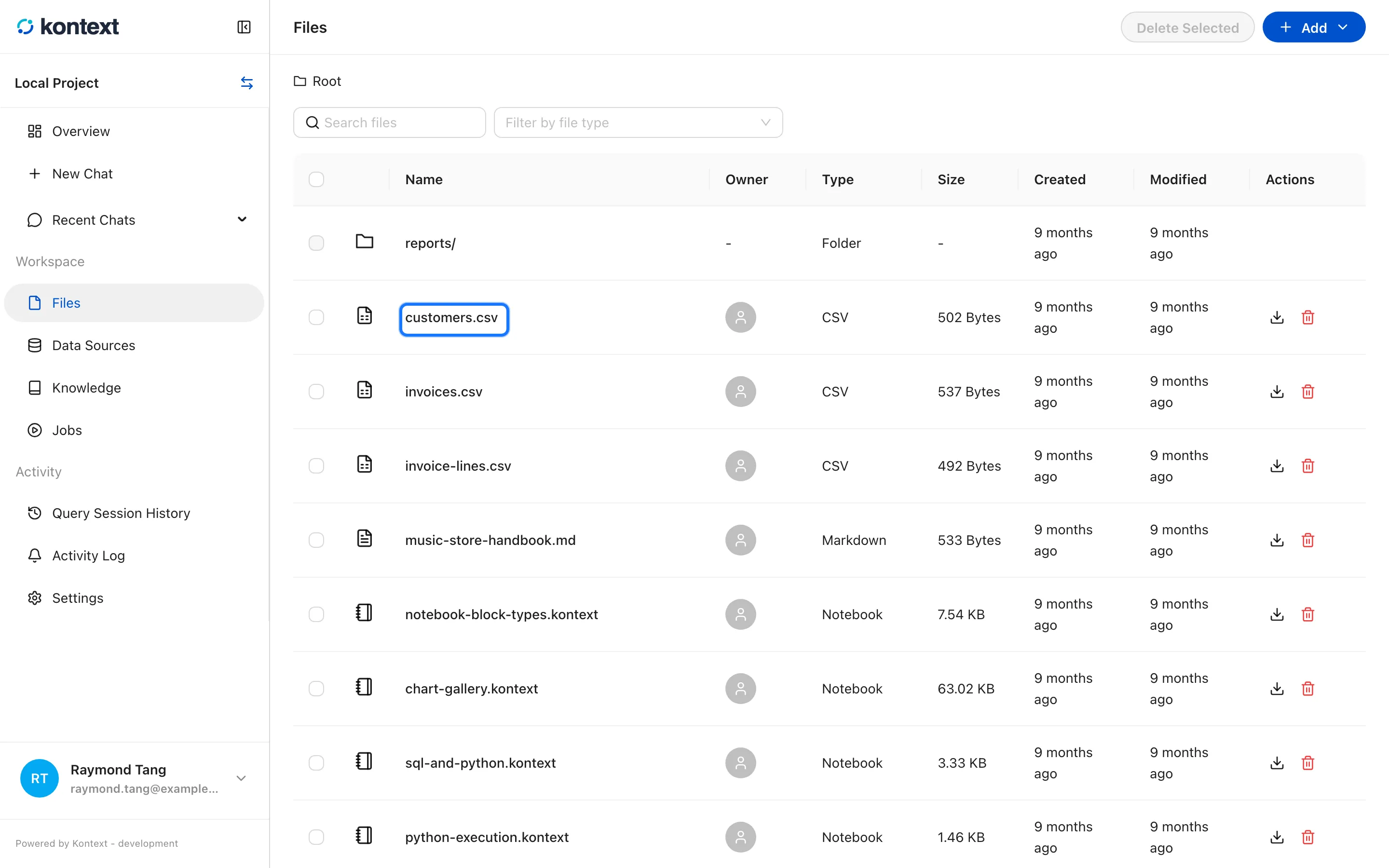
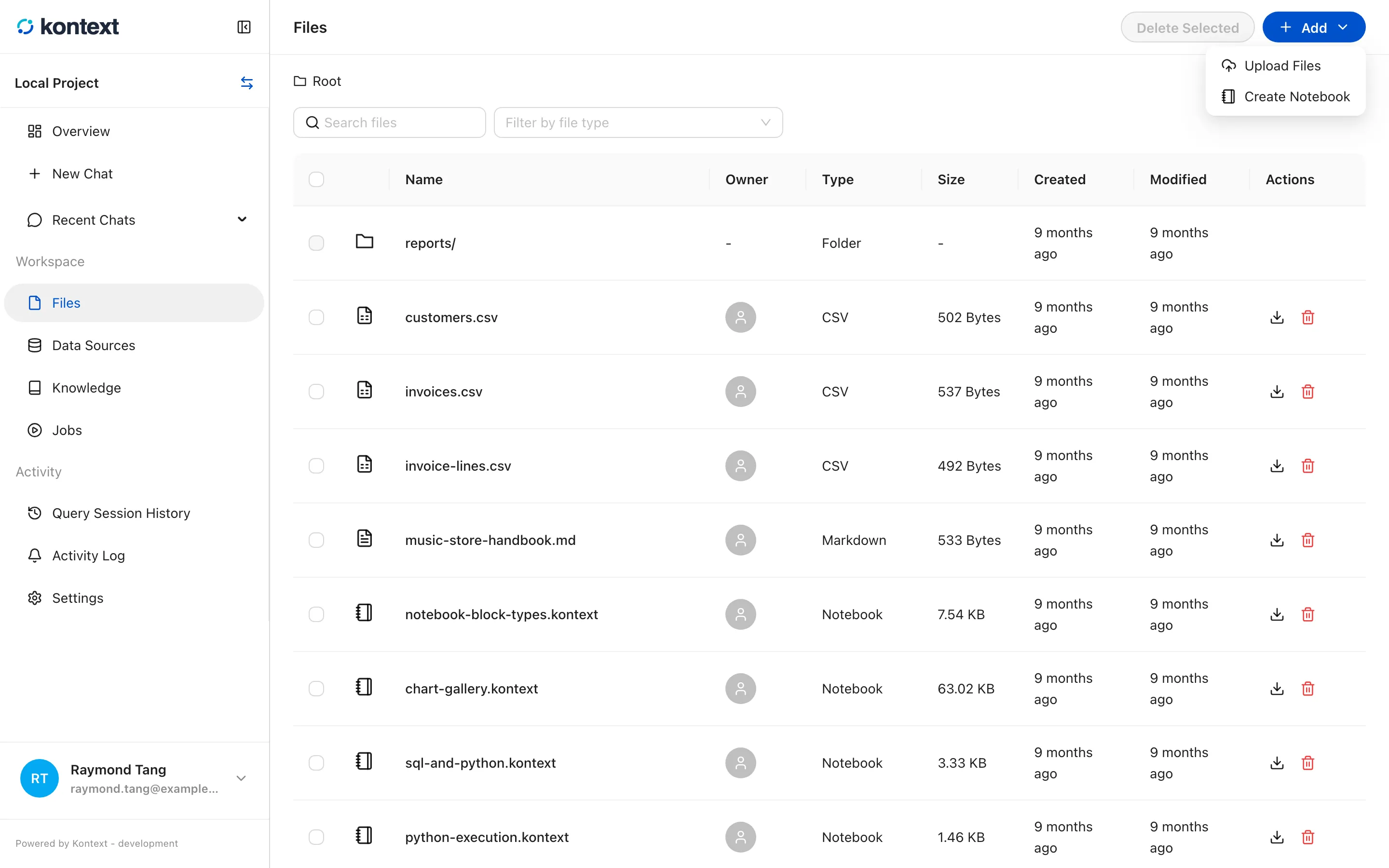
- Add starts an upload or creates a notebook in the current folder.
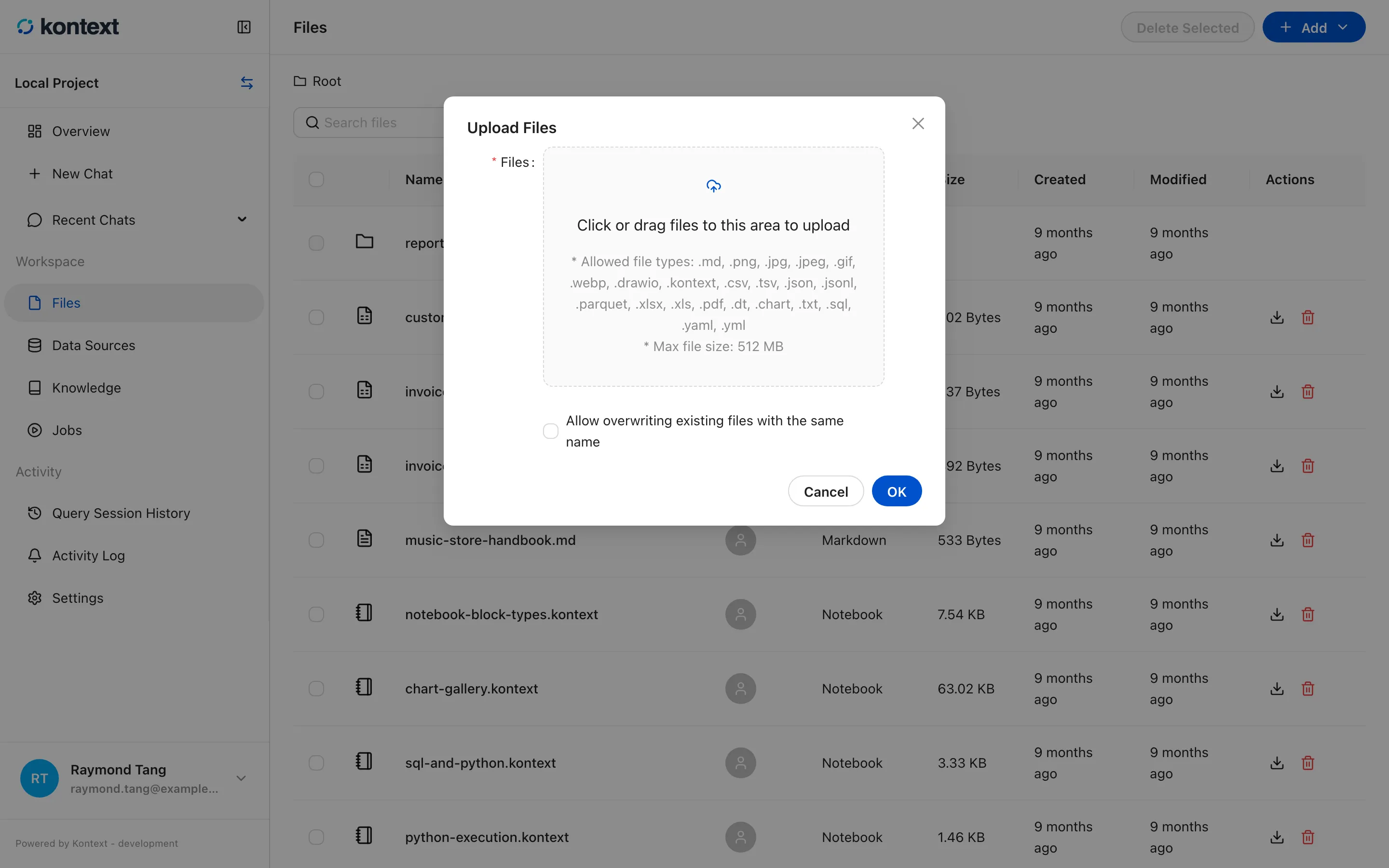
- Upload Files accepts a drag-and-drop or a file picker, shows the allowed types and size limit, and can overwrite a file with the same name.
- Search filters by name, and the file-type filter narrows the list to notebooks, charts, data tables, or uploads.
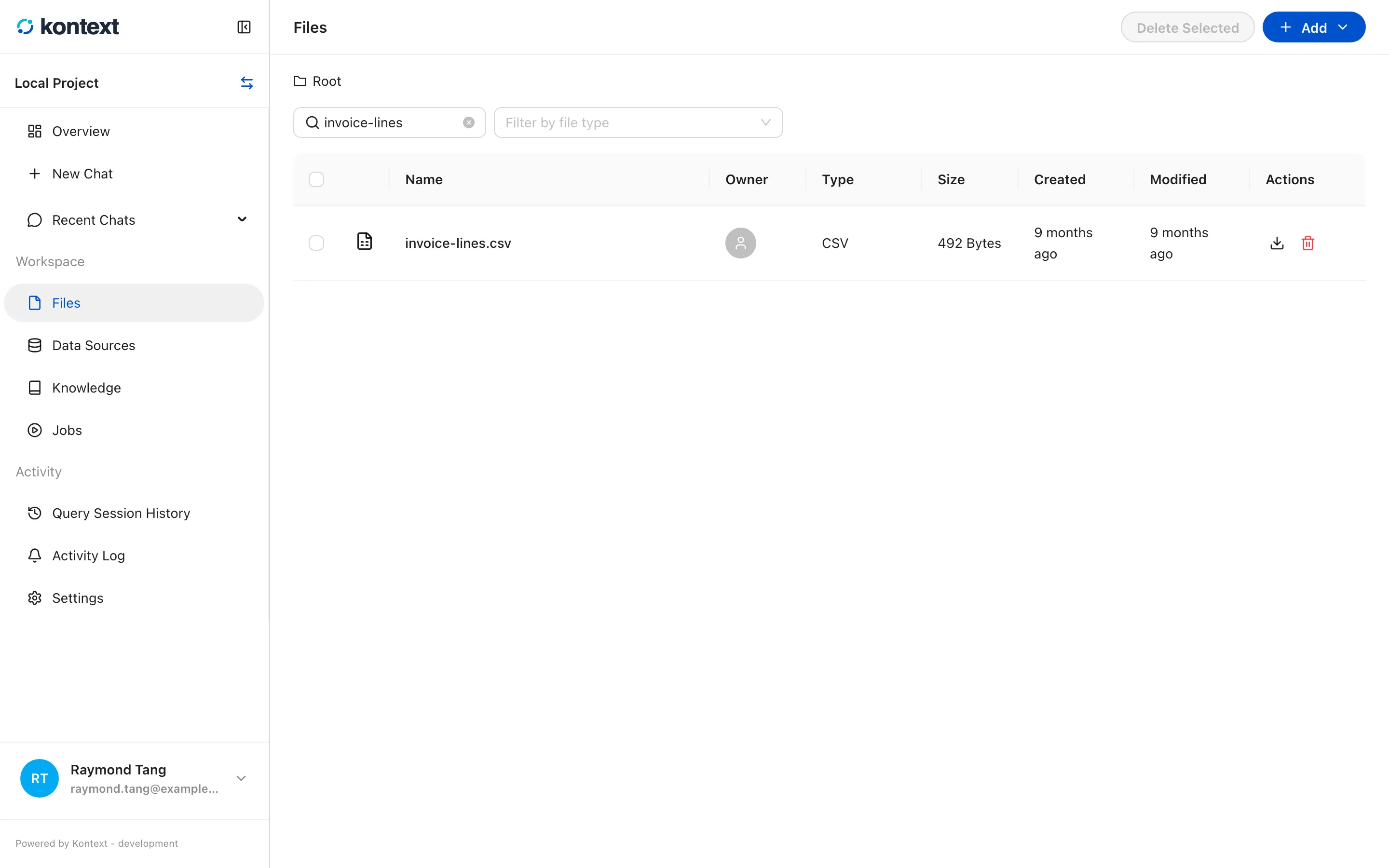
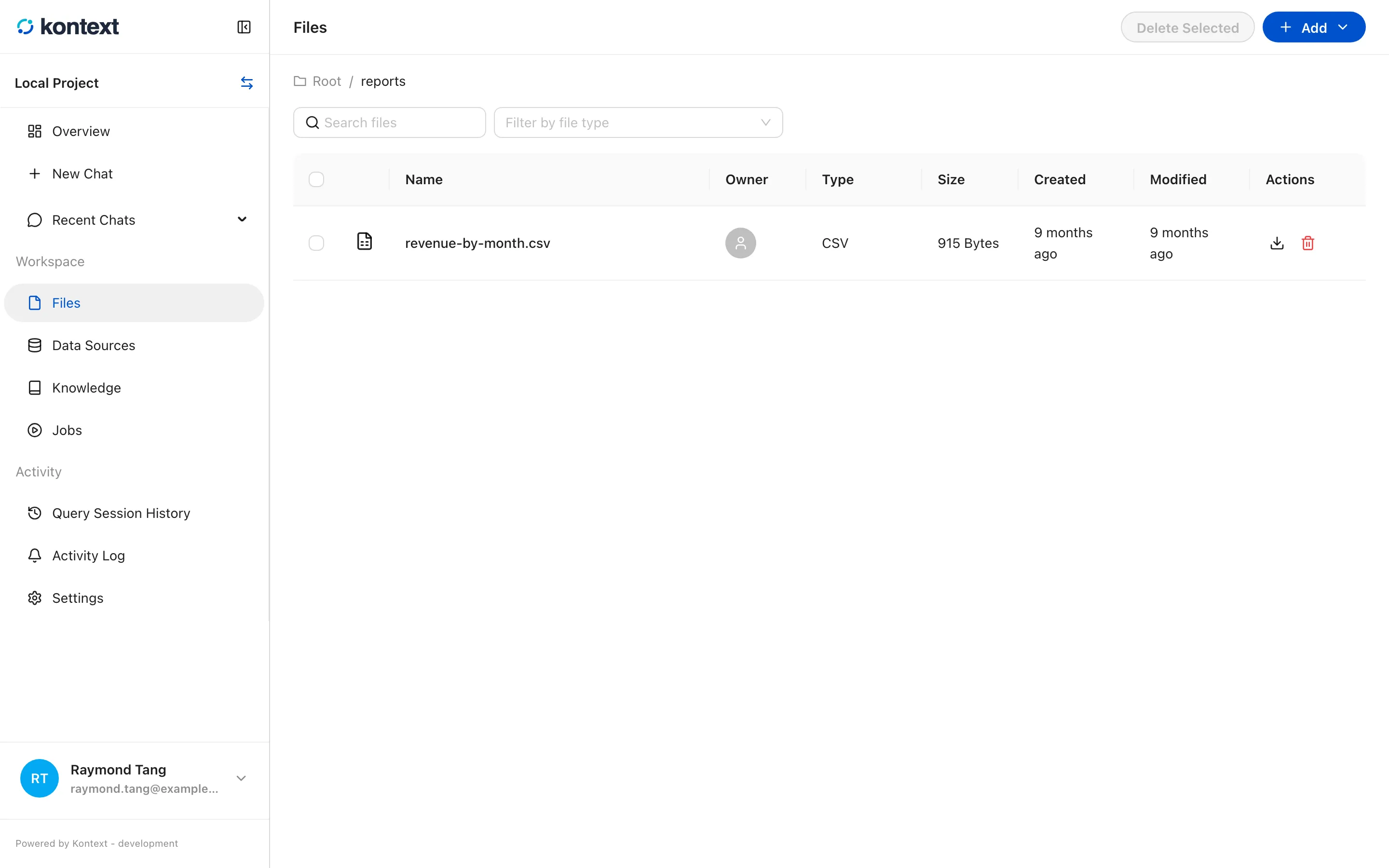
- Folders group related files. The breadcrumb shows the current folder, and selecting Root returns to the project root.
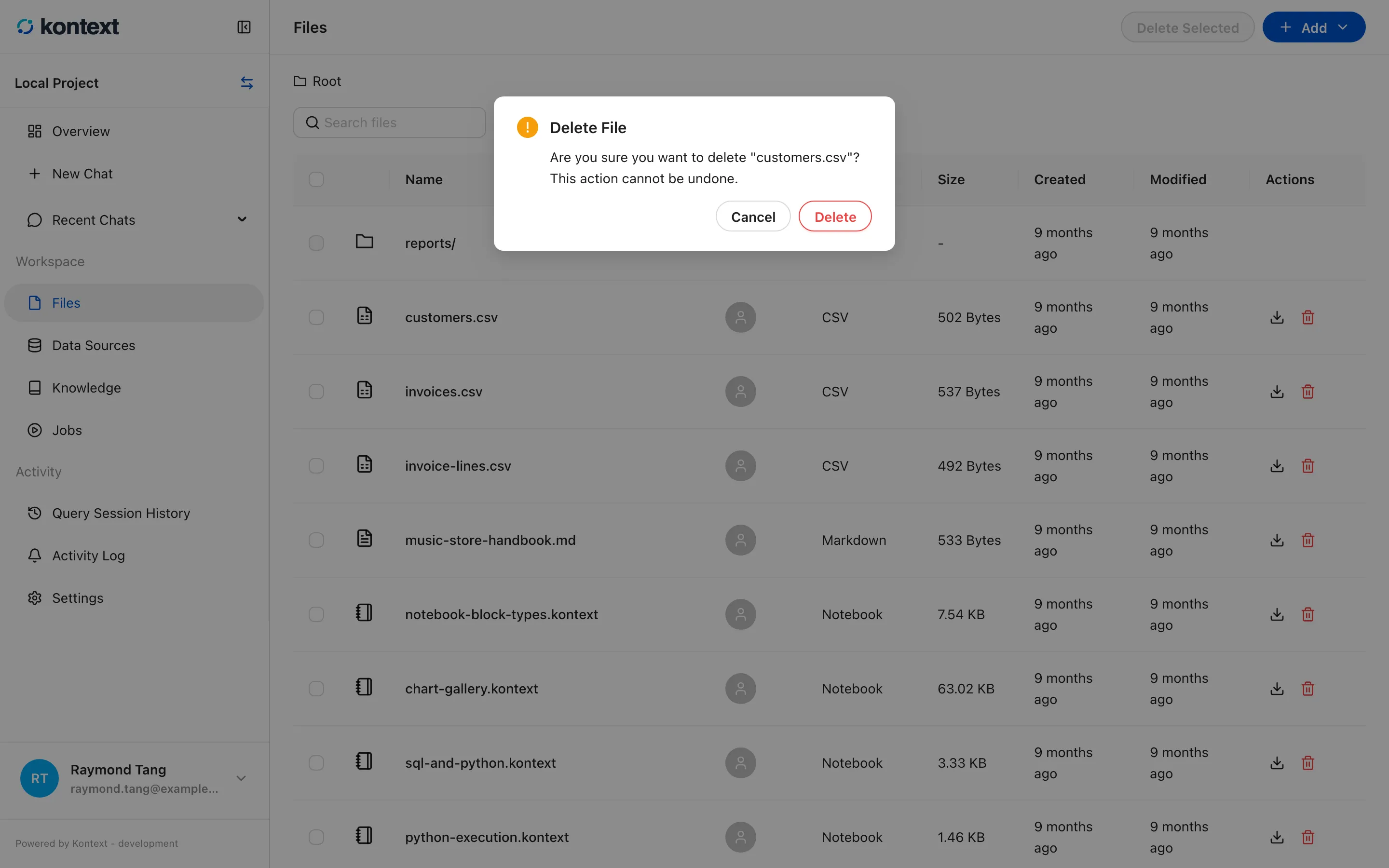
- Select the trash icon on a file to delete it. Kontext asks for confirmation because deleting a file removes it from the project.
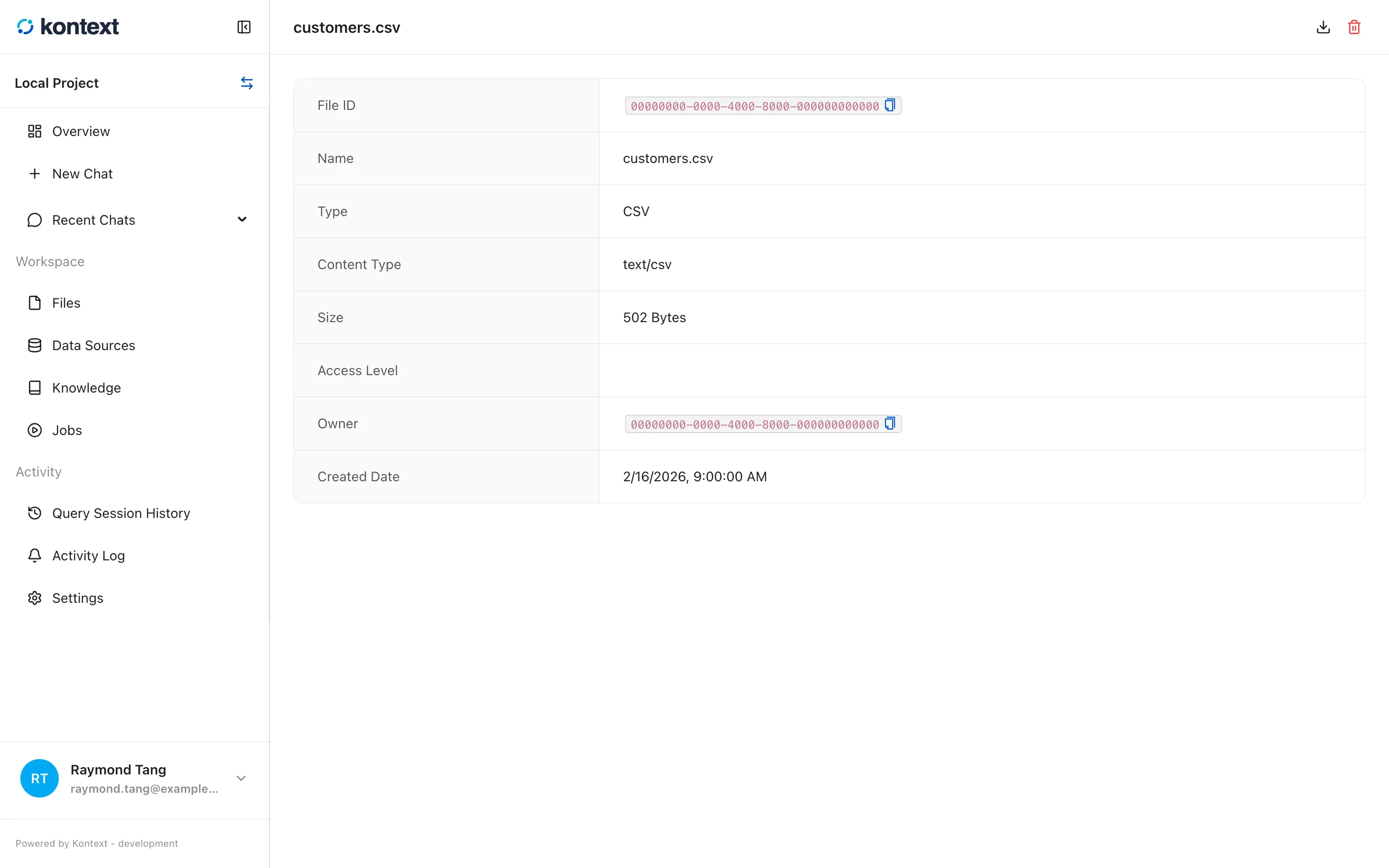
- A file opens on its details page, which records its type, size, owner, and creation date.