

Connect a model provider
Chats and agents need a language model. A model provider is one connection to a provider: the model it should use, where the endpoint lives, and the credentials that authorize it. A local runtime starts with the curated model catalog but no connections, so the first chat asks you to add one.
Providers are user-level, not project-level. A connection you add is available to every project you can open.
Supported providers
Section titled “Supported providers”| Provider | Connection type | Credentials | Notes |
|---|---|---|---|
| LM Studio | Local, OpenAI-compatible | Optional API key | Default endpoint http://localhost:1234/v1 |
| Ollama | Local, OpenAI-compatible | Optional API key | Default endpoint http://localhost:11434/v1 |
| Ollama Cloud | Cloud, native | API key | Default endpoint https://ollama.com |
| OpenAI | Cloud, native | API key | Endpoint can be overridden |
| Anthropic | Cloud, native | API key | Claude models |
| Google Gemini | Cloud, native | API key | Gemini models |
| Google Vertex AI | Cloud, native | Application Default Credentials or API key | Also needs a Google Cloud project and location |
| DeepSeek | Cloud, OpenAI-compatible | API key | Default endpoint https://api.deepseek.com/v1 |
| Mistral | Cloud, OpenAI-compatible | API key | Default endpoint https://api.mistral.ai/v1 |
| OpenRouter | Cloud, OpenAI-compatible | API key | Default endpoint https://openrouter.ai/api/v1 |
| Azure OpenAI | Cloud, native | API key | Needs the resource endpoint and deployment name |
| AWS Bedrock | Cloud, native | AWS access key and secret | Needs a region; optional session token |
| OpenAI-compatible | Any endpoint | Optional API key | Use for a gateway or a provider without a dedicated type |
For each provider you choose a curated model from the catalog, or type any model id the provider supports. The connection also gets a display name, so a project can tell two connections to the same provider apart.
Add or edit a provider
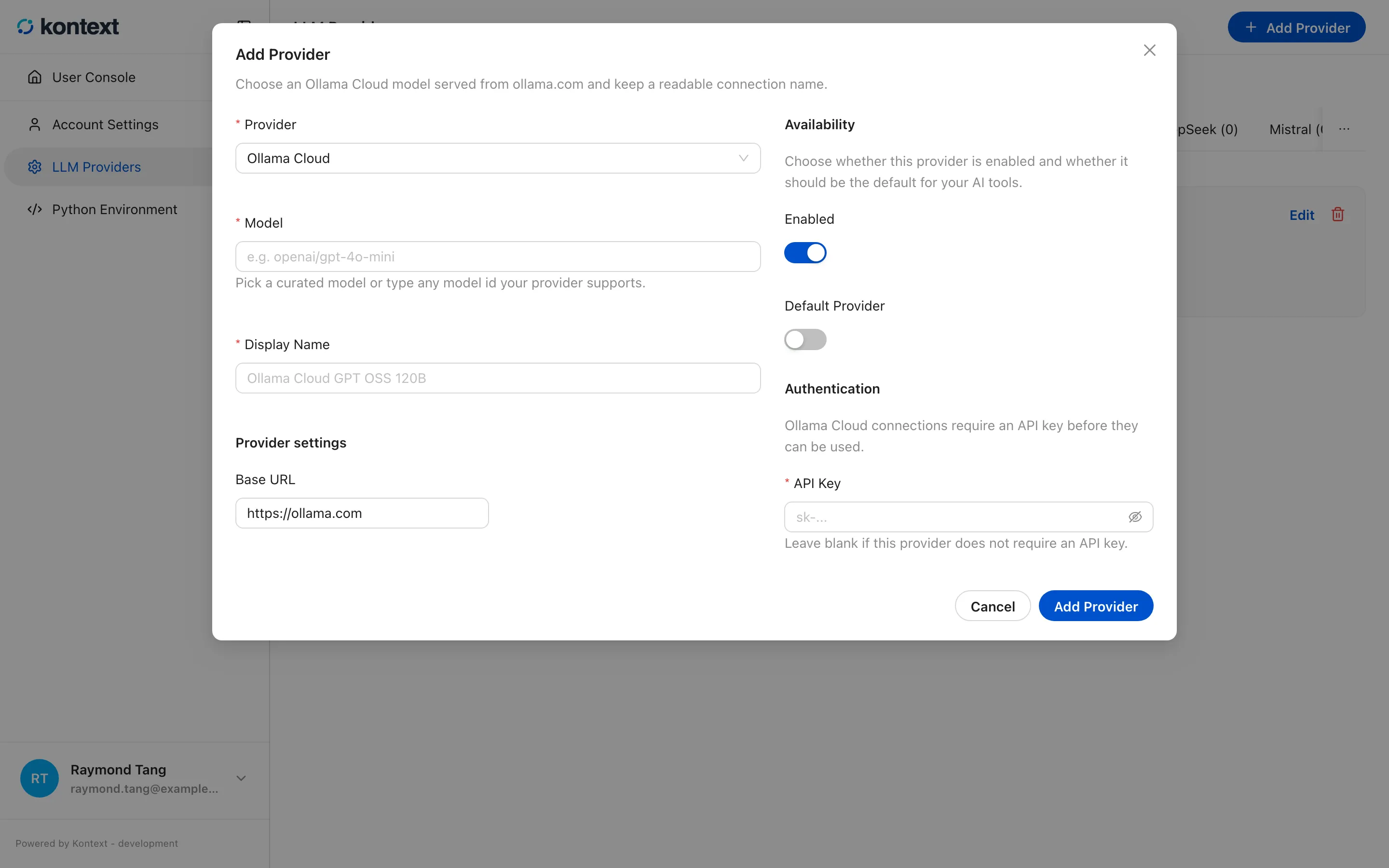
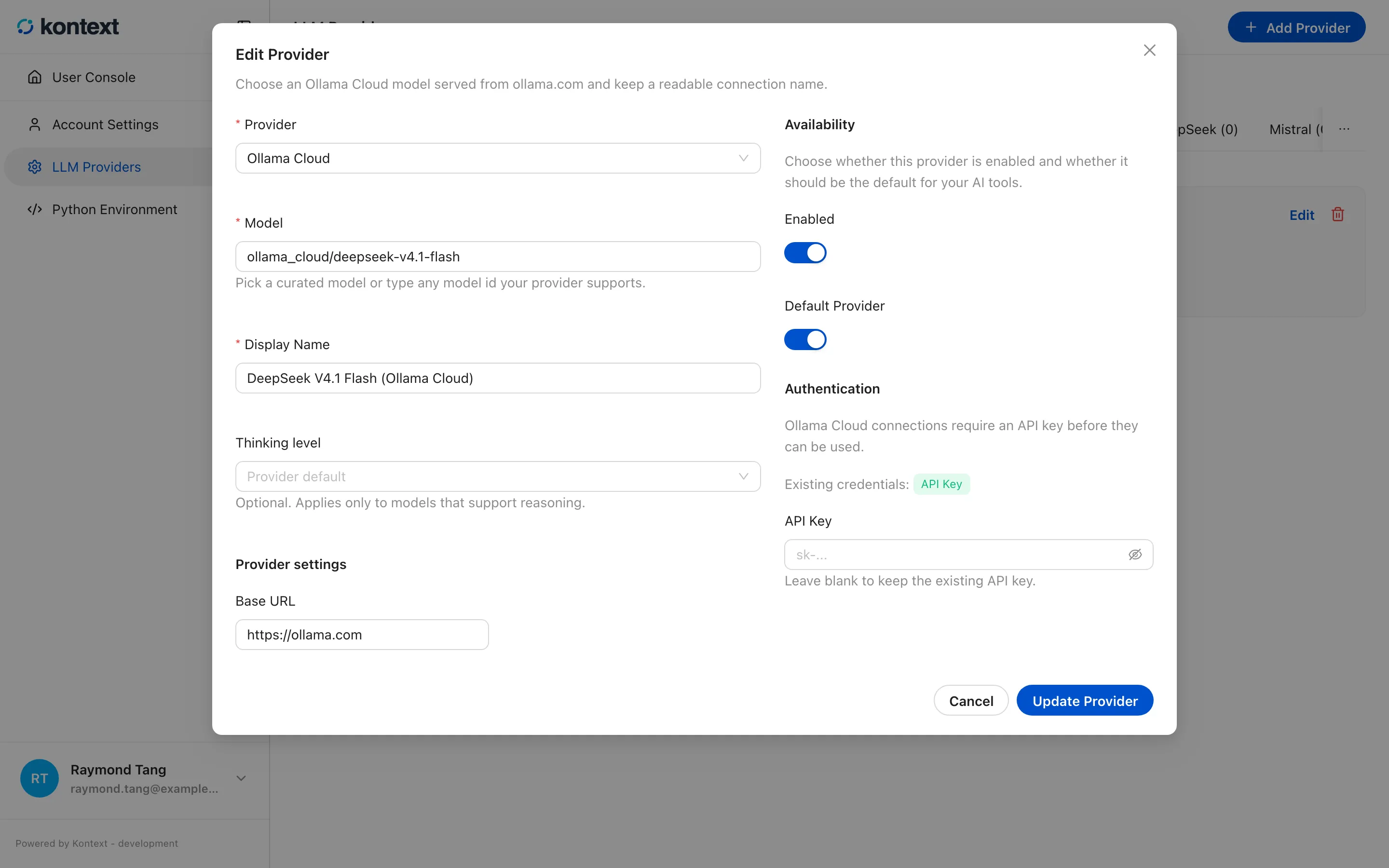
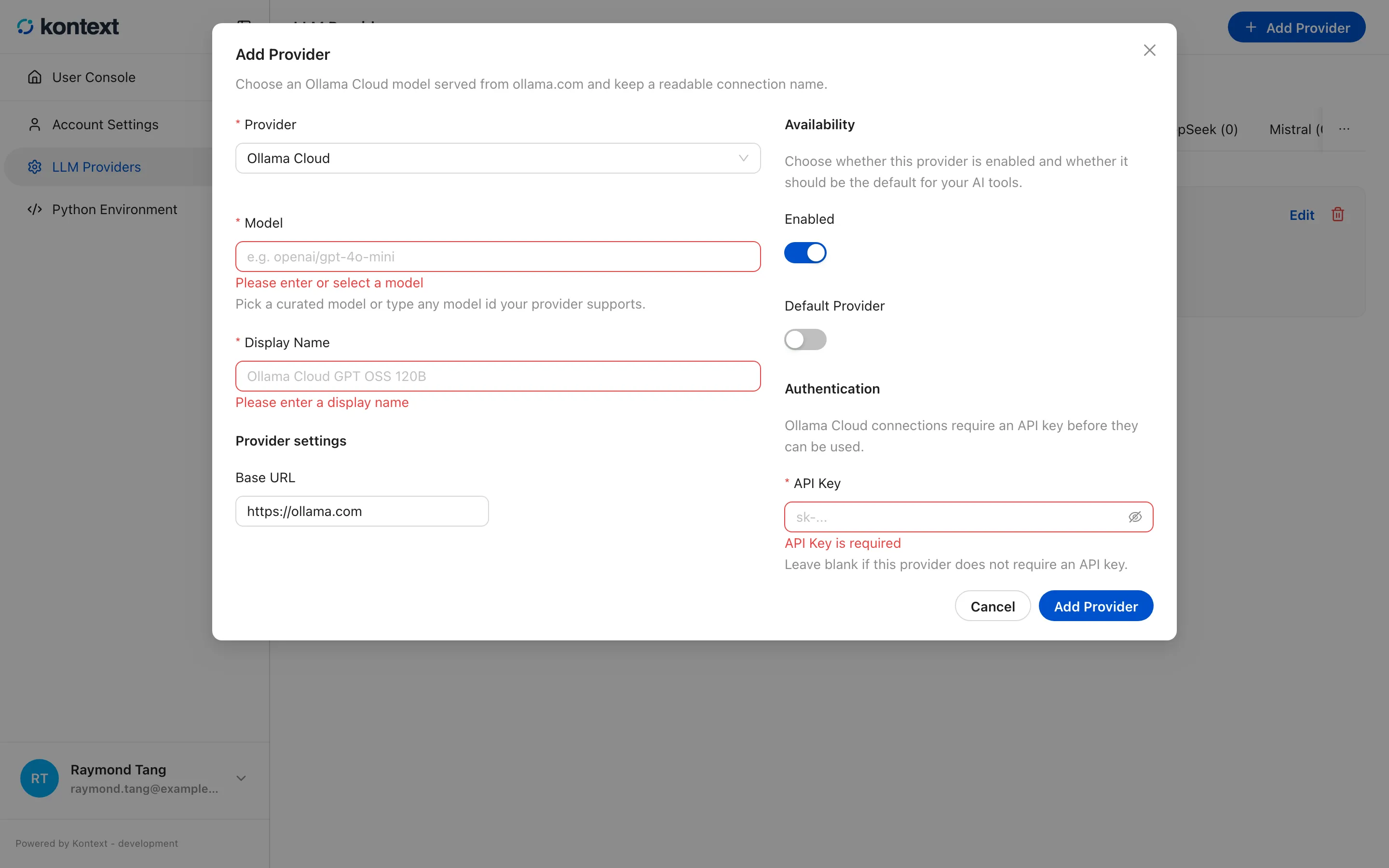
Section titled “Add or edit a provider”Open LLM Providers from the user console and select Add Provider. Choose the provider type, pick or type the model, give the connection a name, then fill in the endpoint or credentials that provider requires. Enabled makes the connection usable; Default Provider makes it the first choice for new chats. Add Provider validates the connection before saving it. Edit reopens the same form for a saved connection, and missing required fields are reported in place instead of saving a partial connection.
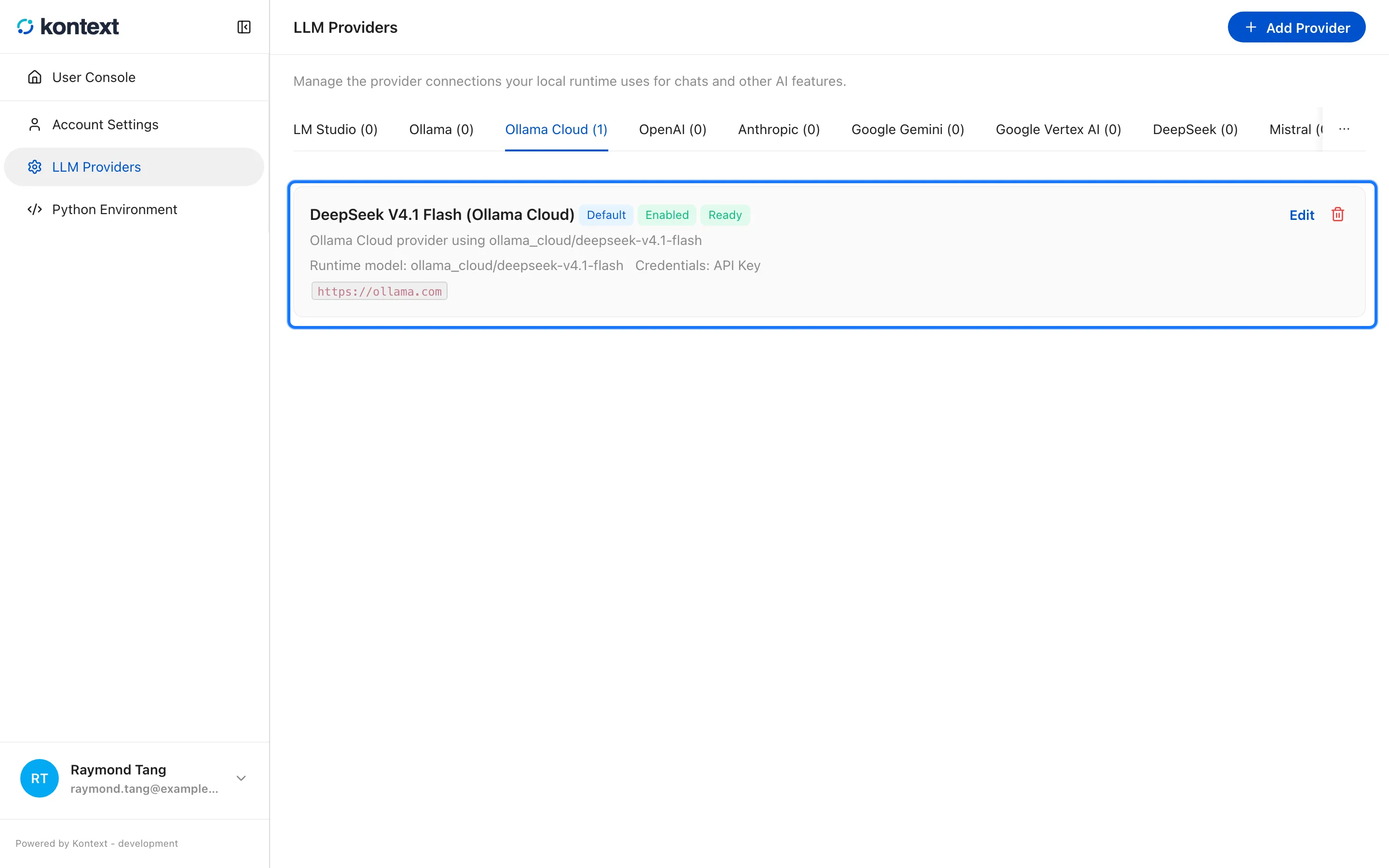
- LLM Providers groups connections by provider type. Select a provider tab to see its connections; each card shows the model, whether it is the default, and which credentials are configured.
- Add Provider chooses a provider type, a curated model, a display name, and the credentials or endpoint it needs. Add Provider in the dialog validates the connection before it becomes available.
- Edit reopens a saved connection with its model, endpoint, and availability. Stored credentials are not shown; leave the field blank to keep them.
- Saving without a model or display name reports the missing fields in place, so nothing is stored until the connection is valid.
Manage connections
Section titled “Manage connections”Each provider tab groups its connections and shows how many exist. A card reports the model, the provider type, the runtime model name, which credentials are configured, and a readiness state:
- Ready means the last validation succeeded.
- Needs attention means validation failed; open Edit and check the credentials or endpoint.
- Unknown means the connection has not been validated yet.
Edit changes the model, name, endpoint, or credentials. Leaving a credential field blank while editing keeps the stored value. Delete removes the connection without deleting the model catalog.
Credentials are stored by the local server and are never returned to the browser; the card only reports which fields are set.