

Install and start Kontext Labs
Kontext Labs runs on your own machine. The local server, the data engine, and the web app all start together, and everything you create stays in a workspace directory on disk.
Before you start
Section titled “Before you start”You need Python 3.12 or newer and uv.
Install
Section titled “Install”uv tool install kontext-labsTo pin a specific release, use the version number, for example 0.261.0:
uv tool install "kontext-labs==0.261.0"To upgrade later:
uv tool upgrade kontext-labsStart the server
Section titled “Start the server”Run the server from the directory that should hold your workspace:
kontext-labs serveThe first start creates a workspace in .kontext/ and prints the URL to open.
Kontext seeds a placeholder profile called Local Admin and one project
called Local Project, so you can start working immediately.
To open the browser automatically:
kontext-labs serve --openUse --host, --port, or --lake-path to bind a different address, change
the port, or keep the workspace somewhere other than .kontext/.
Replace the placeholder profile
Section titled “Replace the placeholder profile”The placeholder profile is enough to get started, but it is worth replacing
before you add data. The setup page is available at /setup on the same address
as the app, for example http://localhost:8000/setup.
- Kontext starts with a placeholder profile. Open
/setupbefore you add any data to replace it with your own name and email.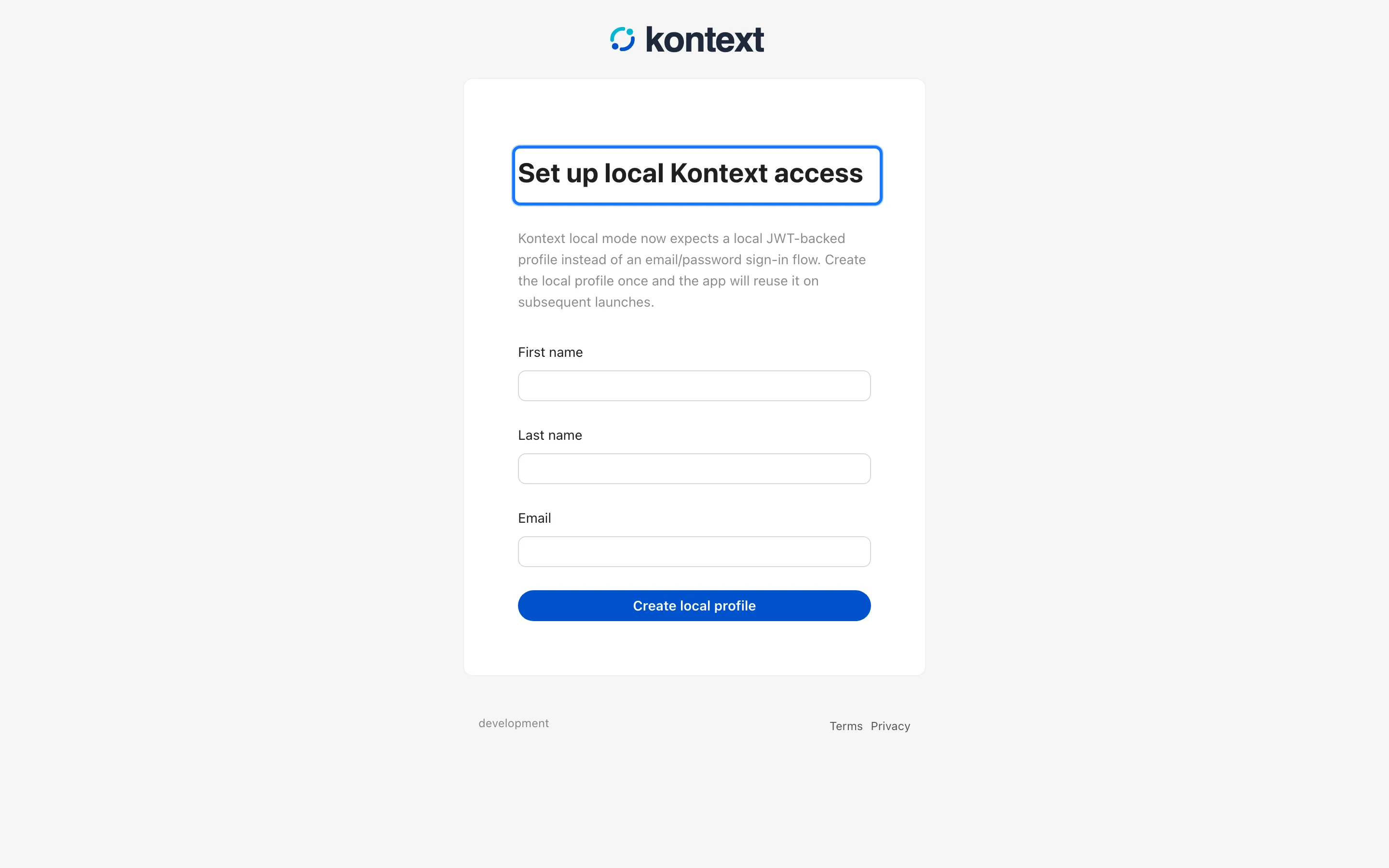
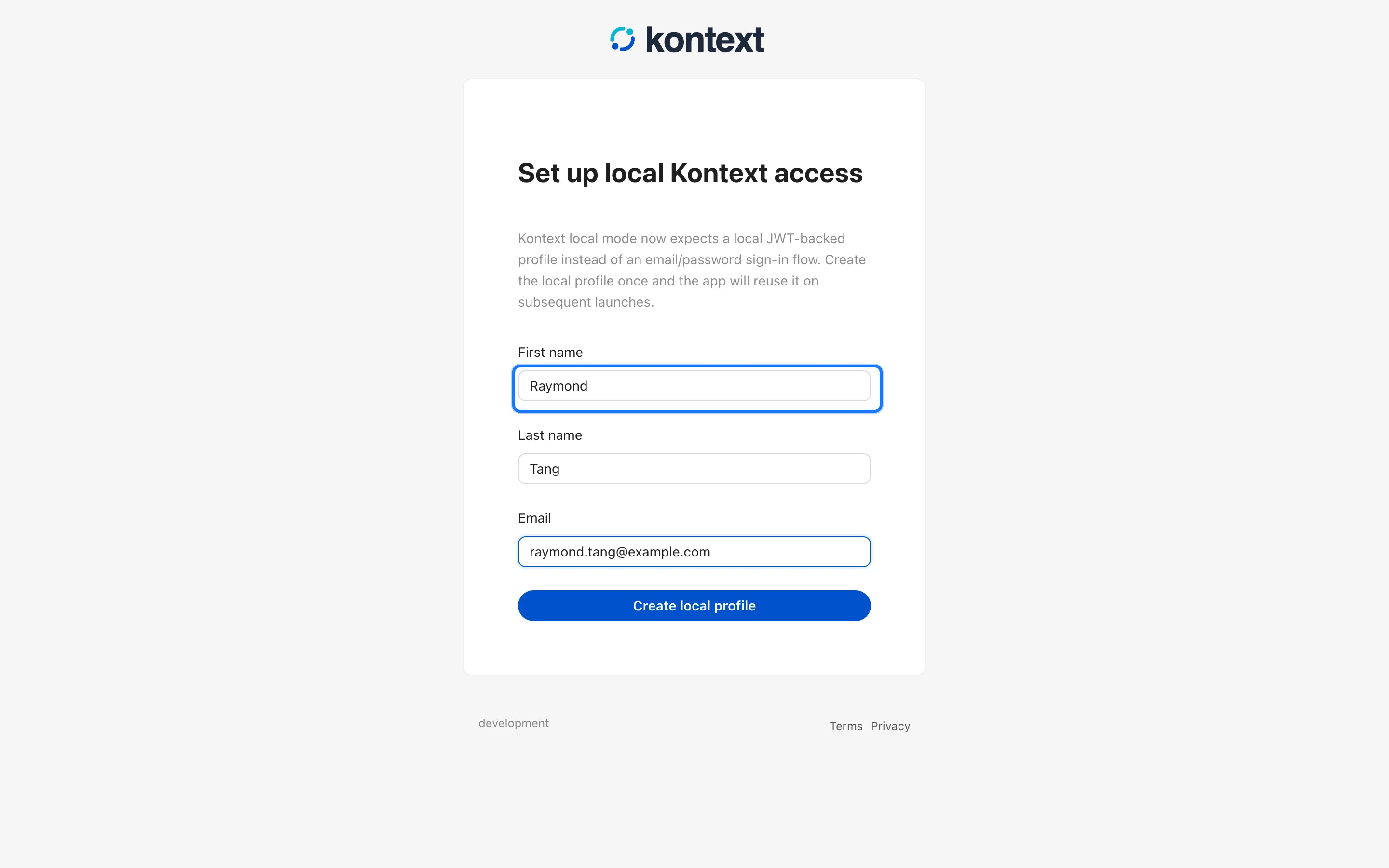
- Enter a first name, an optional last name, and an email address.
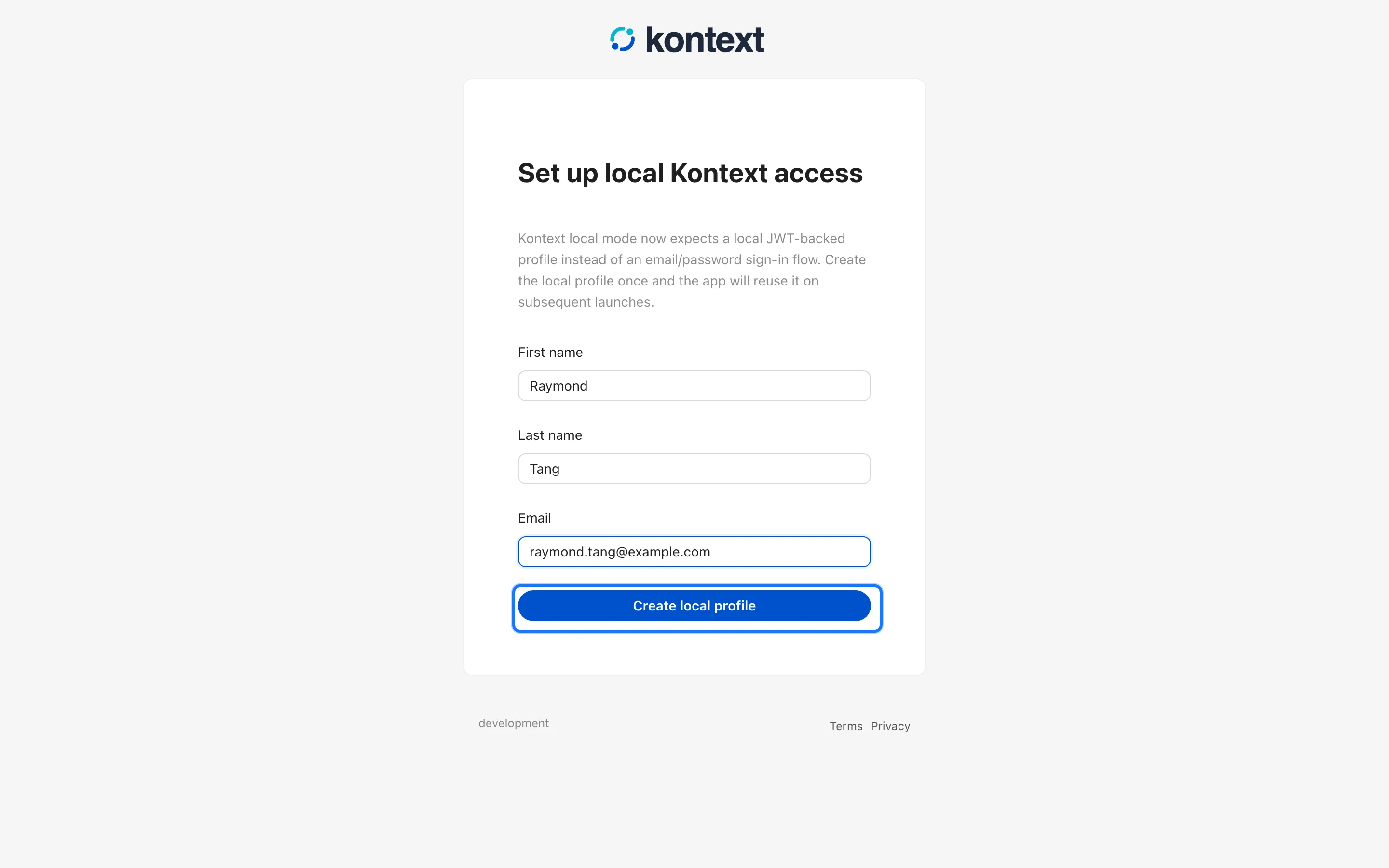
- Select Create local profile. Kontext stores the profile on this machine and signs you in.
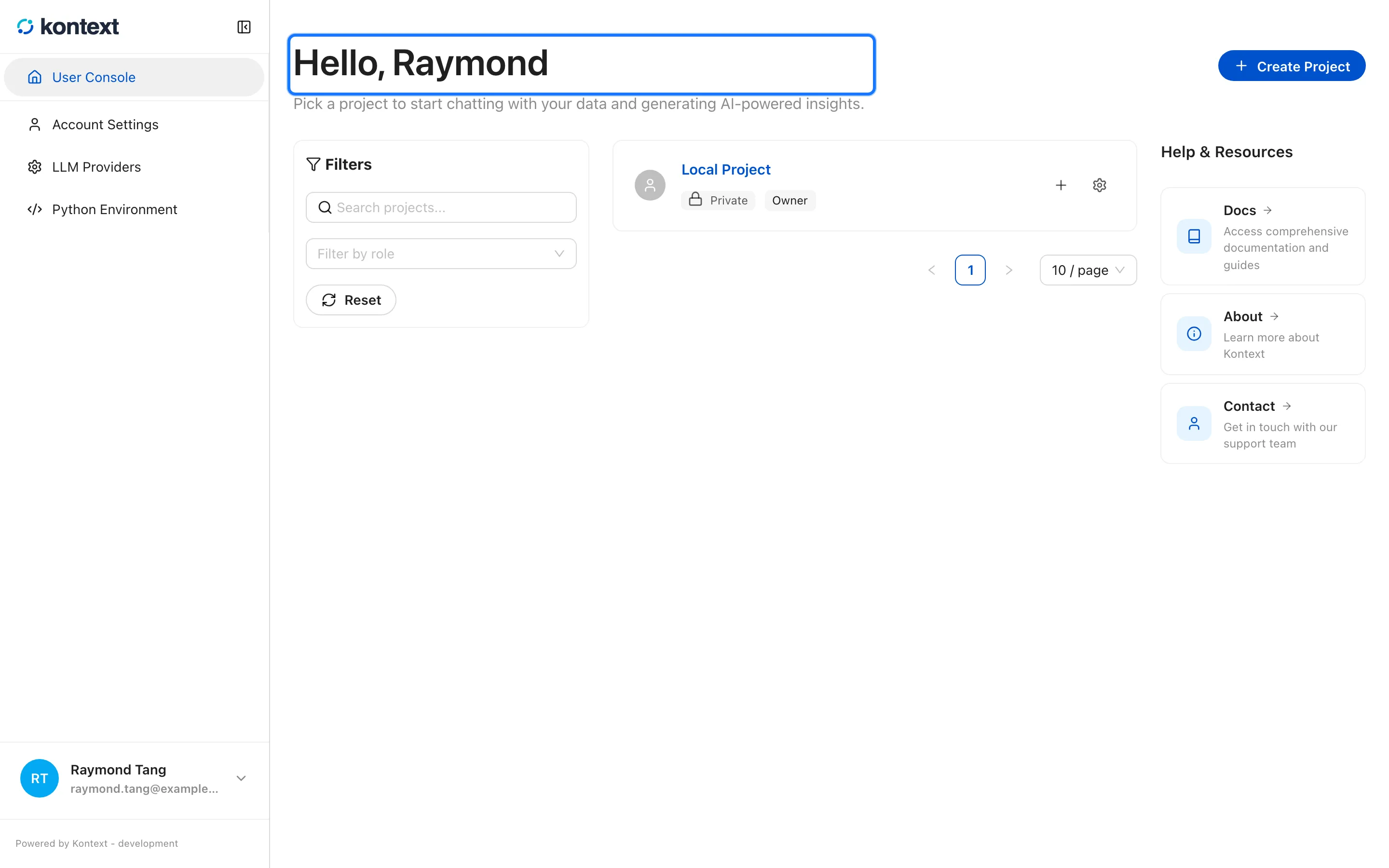
- Kontext opens your workspace with one project and the local profile you created.
Connect a model provider
Section titled “Connect a model provider”Kontext does not bundle a model. After signing in, open Model providers and add a local or cloud provider, then choose the default model for your work. See Connect a model provider for the supported providers and settings.
CLI commands
Section titled “CLI commands”Most work happens in the browser, but kontext-labs also exposes the local
workspace from the terminal:
| Command | Description |
|---|---|
kontext-labs serve |
Start the local server and UI |
kontext-labs project list |
List projects in the local workspace |
kontext-labs project create <name> |
Create a project |
kontext-labs project import <files…> |
Import data files into a project |
kontext-labs job list |
List available job types |
kontext-labs job run <type> |
Run a job synchronously |
project import accepts CSV, Parquet, JSON, and other data files. Pass
--project to target a project other than the first one, and --subdir to
choose where the files land under the project’s data directory.
Supported platforms
Section titled “Supported platforms”| Platform | Architecture |
|---|---|
| macOS | arm64, x86_64 |
| Linux | x86_64 |
| Windows | x86_64 |
Python 3.12 or newer is required.