

Chat with an agent
Chat is the fastest way to get something done in a project. You ask a question in plain language and an agent decides what to do: query a data source, run Python, build a chart or notebook, or delegate to a specialist agent. The conversation keeps the answer and the tool calls that produced it, so you can check how a result was made.
Start a conversation
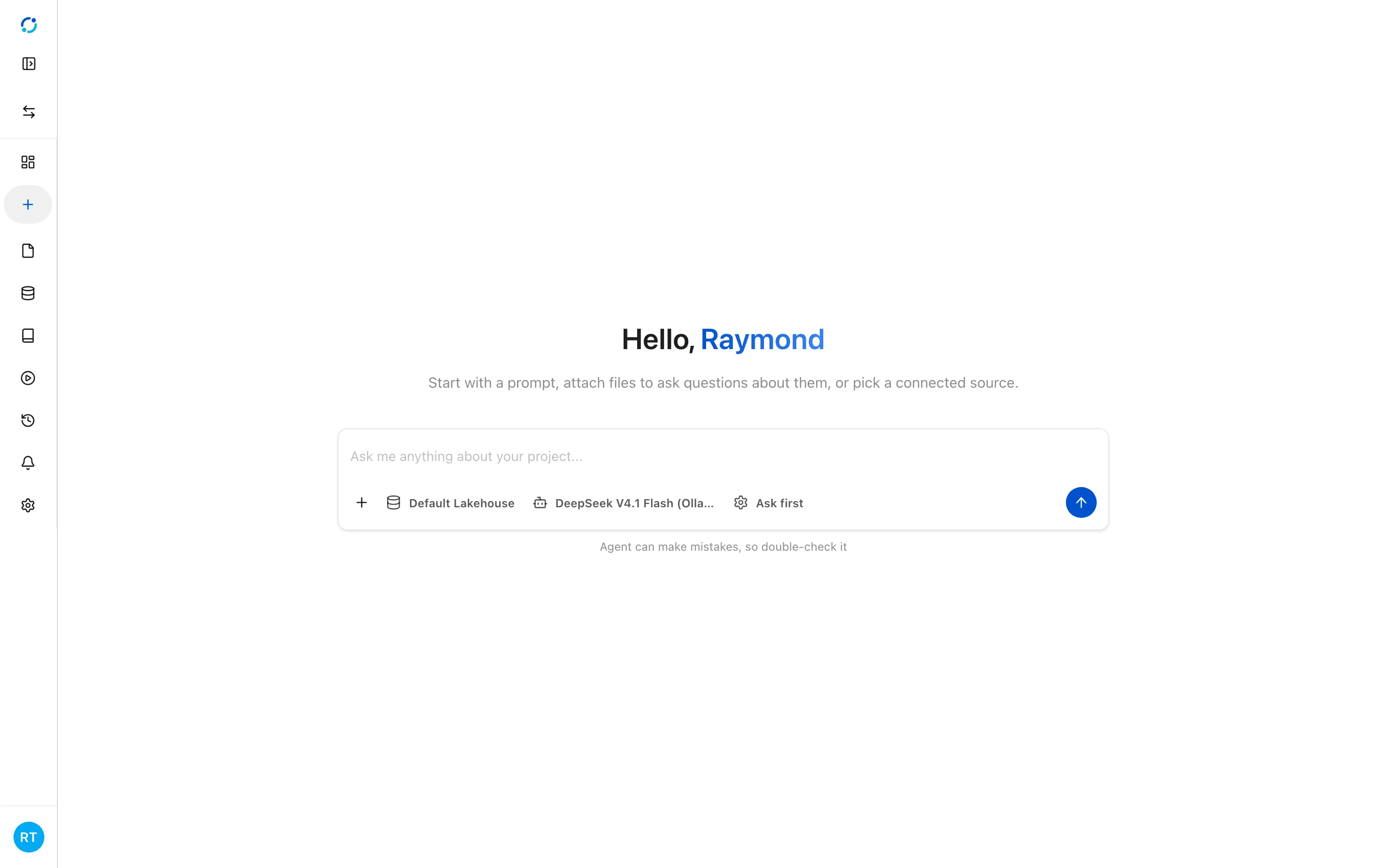
Section titled “Start a conversation”Select New Chat in the sidebar, or New Chat on the Chats page. Before you send the first message, check the three controls under the composer:
- Data source chooses the catalog the agent should query. Without a choice, it uses the session’s default connection.
- Model chooses which model answers. The list comes from the model providers you have connected.
- Ask first is the Python approval mode. In this mode the agent pauses before executing Python so you can approve or reject the code. The other modes run Python automatically.
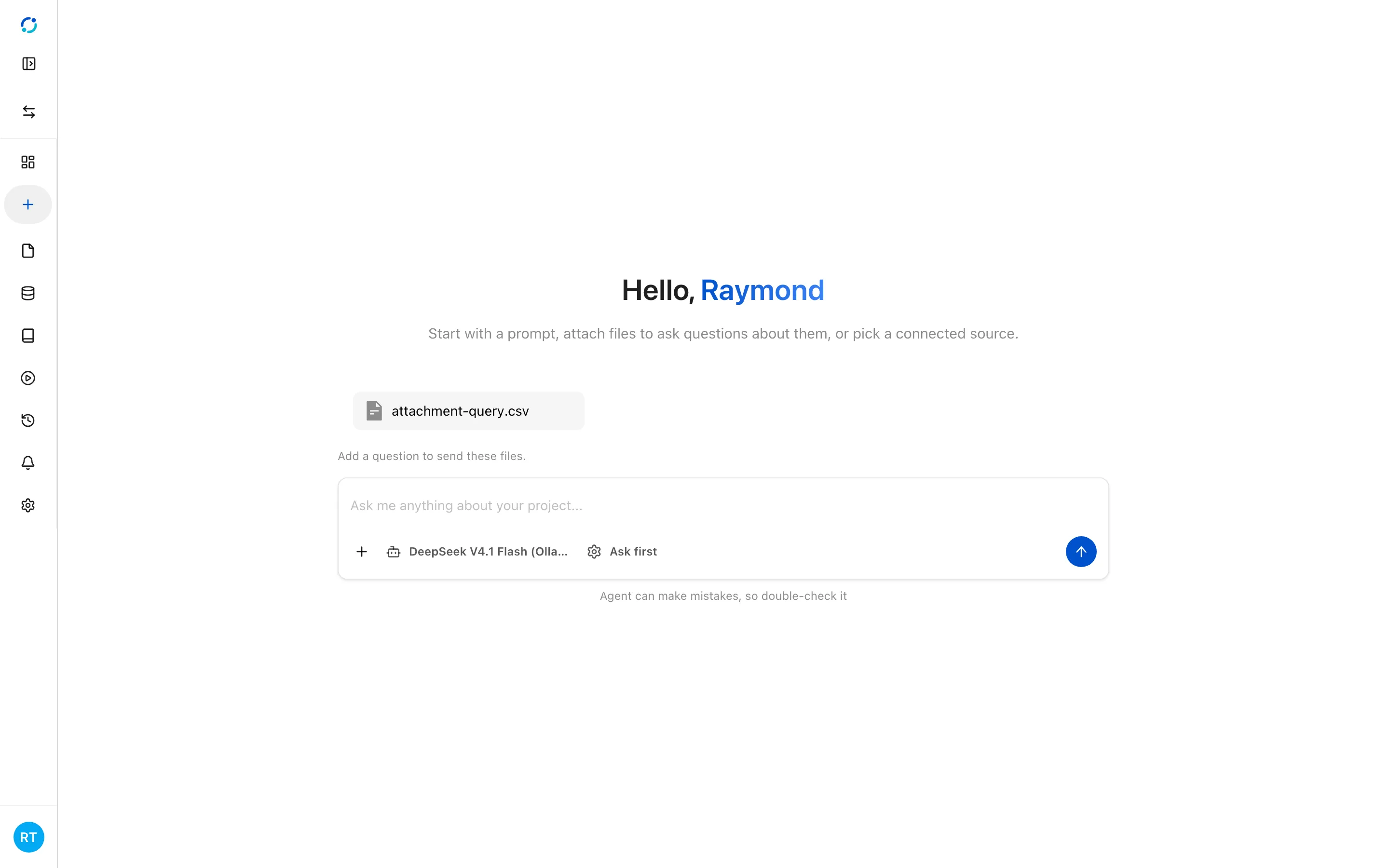
Attach files stages a data file for the conversation. The agent can query the attachment alongside the selected data source, and the question is sent with the files in one turn.
- New Chat opens an empty conversation. The composer chooses the data source, the model, and the Python approval mode before the first message.
- Attach files stages a data file for the conversation so the agent can query it alongside the project data.
Example prompts
Section titled “Example prompts”The same conversation can explore a project, write SQL, and build output. Some prompts to start from:
- Suggest an agenda — “Suggest three questions based on the data in the project.”
- Inspect the project — “How many tables are in the data lake?”
- Write SQL — “Write a query to show transaction volume by year and month.”
- Run the query — “Execute the above query with a reasonable limit for previewing results.”
- Ask a data question — “Which age group has the highest number of customers?”
- Create a notebook — “Create a notebook to visualise customer demographics by age band and country.”
Conversations
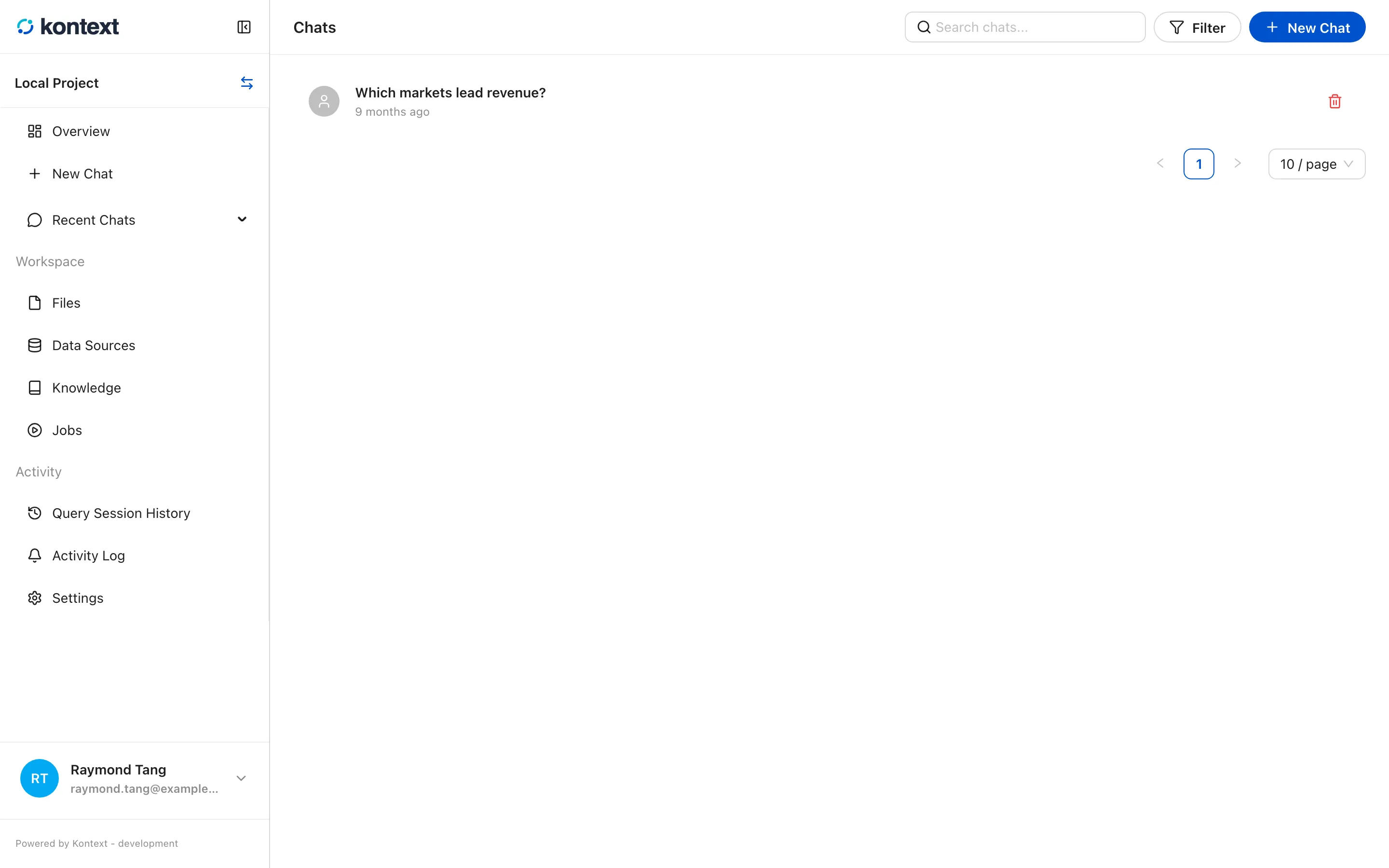
Section titled “Conversations”Every session is saved with a title, an owner, a timestamp, and a message count. Open Chats to search them, filter to your own sessions, or delete one.
- Chats lists every conversation in the project. Search by name, filter to your own sessions, or open one to continue it.
Inside a conversation
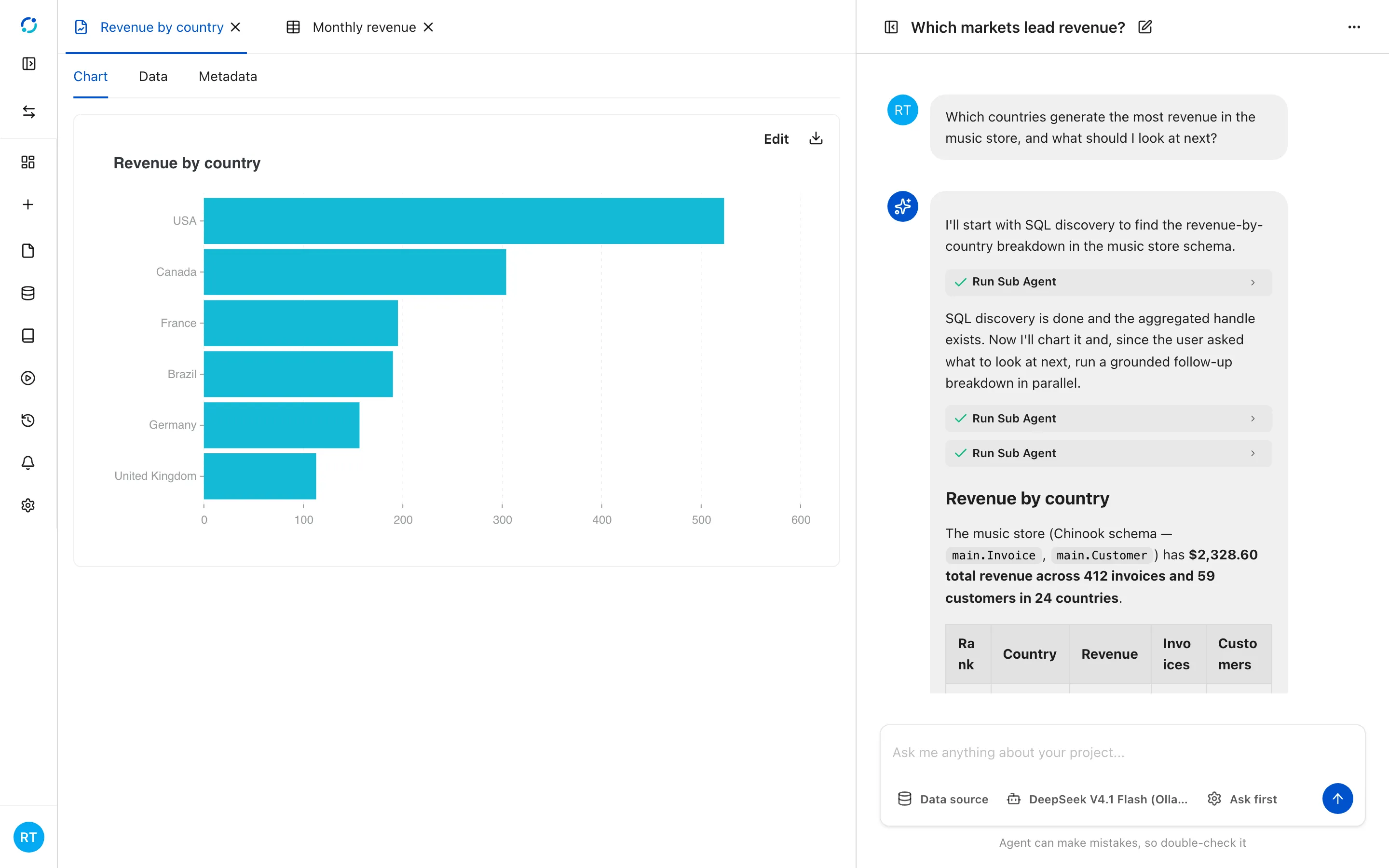
Section titled “Inside a conversation”A session keeps the question, the answer, and the steps in between. Tool calls appear inline — for example Run Sub Agent when the coordinator delegates SQL, chart, or notebook work. Expand a call to see what was delegated and what came back. Answers render Markdown, tables, and links, and the composer stays pinned to the bottom so you can continue without scrolling back.
- A session keeps the question, the answer, and the tool calls that produced it. Expand Run Sub Agent to see what the agent delegated and what came back.
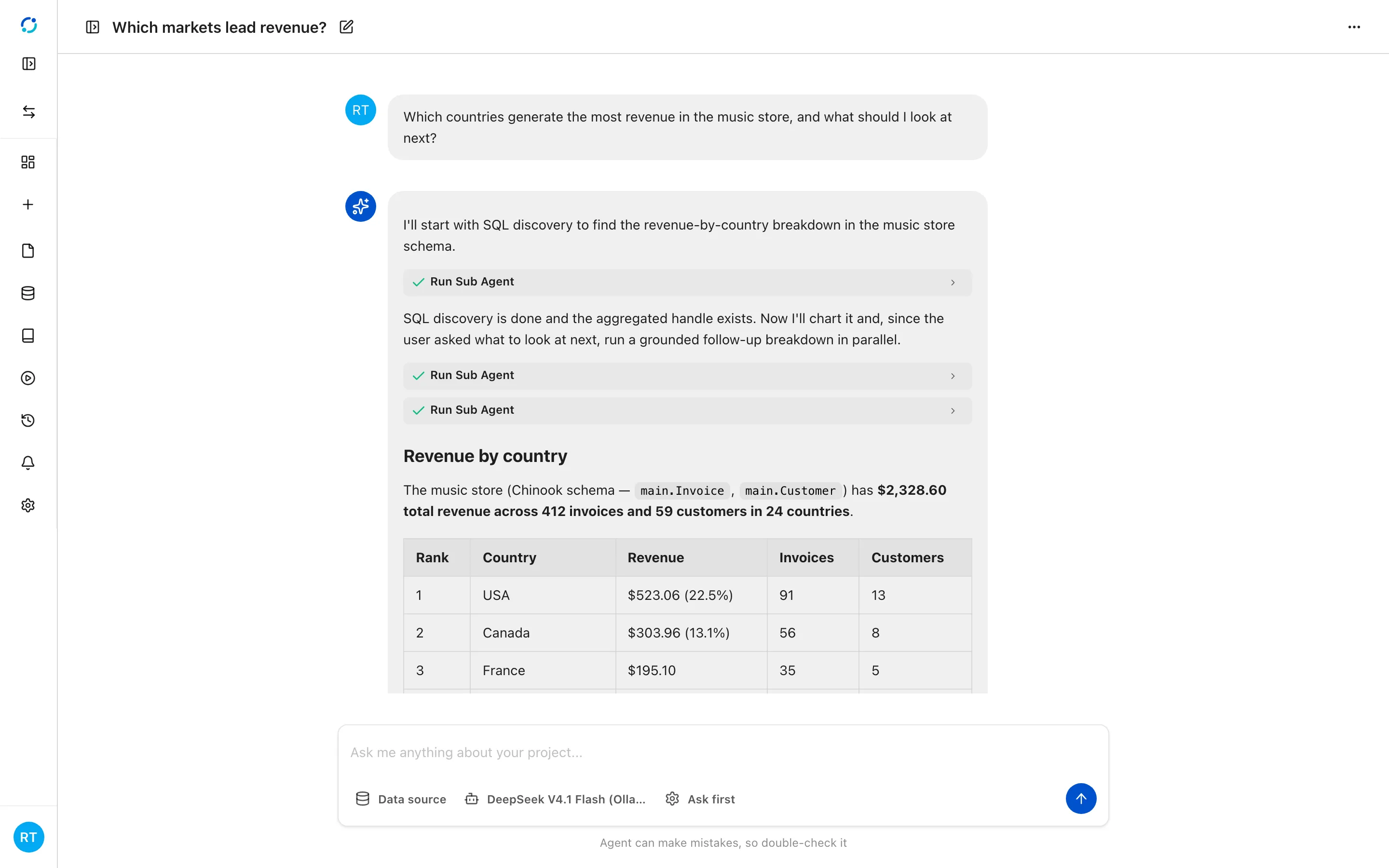
- Artifacts the run created — charts, data tables, notebooks, and images — open beside the conversation, so you can inspect the result without leaving the chat.
Artifacts
Section titled “Artifacts”When a run creates a chart, data table, notebook, or image, it becomes an artifact of the session. The artifact panel opens beside the conversation with a tab per artifact. A chart artifact shows Chart, Data, and Metadata tabs, and Edit opens the same chart editor used elsewhere. Removing an artifact only detaches it from the chat; the underlying file stays in the project.