Project overview and usage
Selecting a project opens its Overview, the project’s home screen. It shows the project’s identity, usage, and shortcuts to the files, notebooks, and chats that belong to it.
Project stats
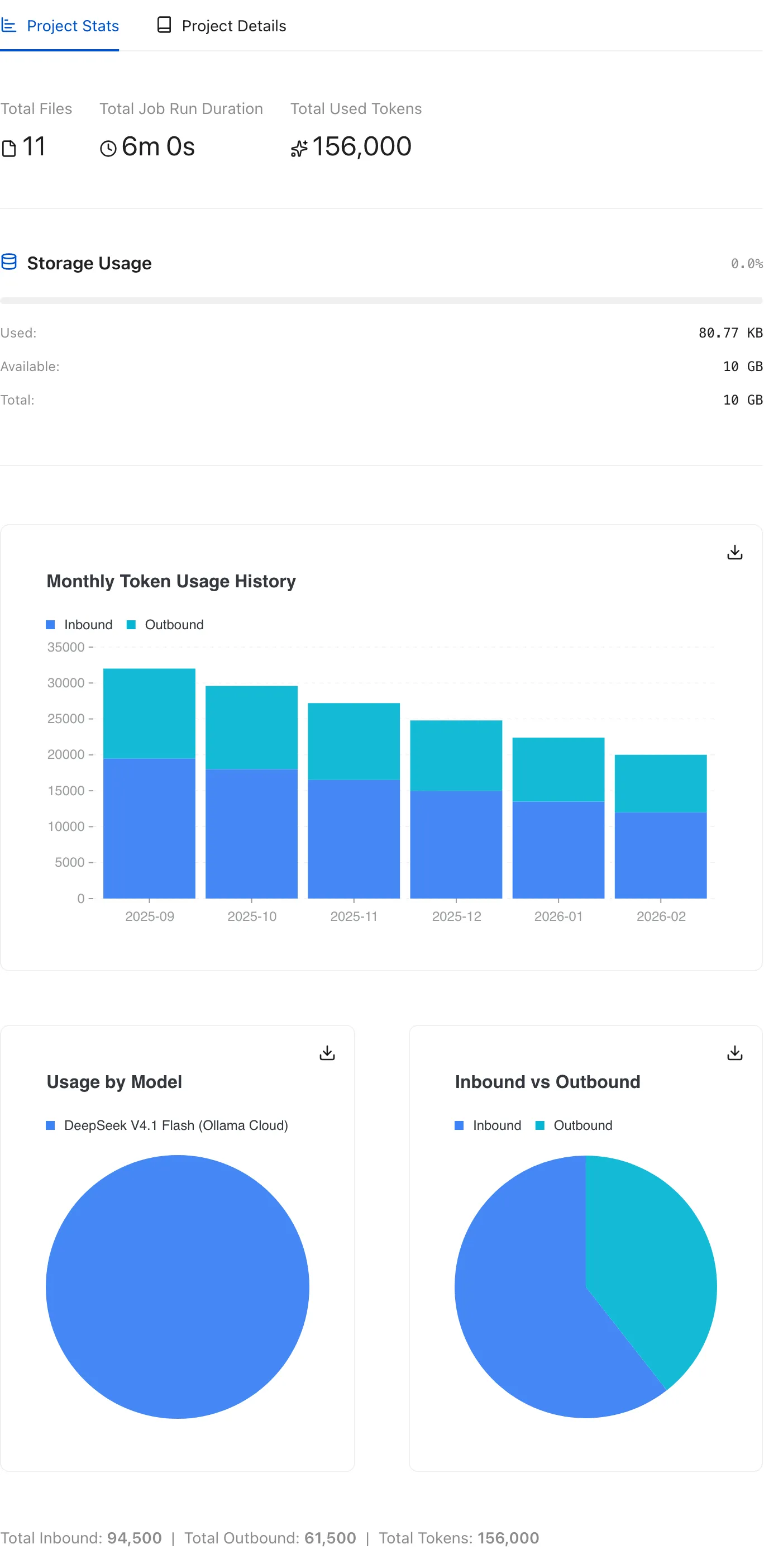
Section titled “Project stats”The Project Stats tab is open by default. It summarizes:
- Total Files and Total Job Run Duration for the project.
- Total Used Tokens across the project’s chats.
- Storage Usage, with used, available, and total space. Kontext warns when usage passes 80% and marks it as almost full at 95%.
- Monthly Token Usage History, with inbound and outbound tokens stacked by month. Below it, the same tab breaks usage down by model and by inbound versus outbound direction; a daily view appears when daily data exists.
These totals are useful before importing a large data set or running an expensive job, and when checking how much of a model budget a project used.
Project details
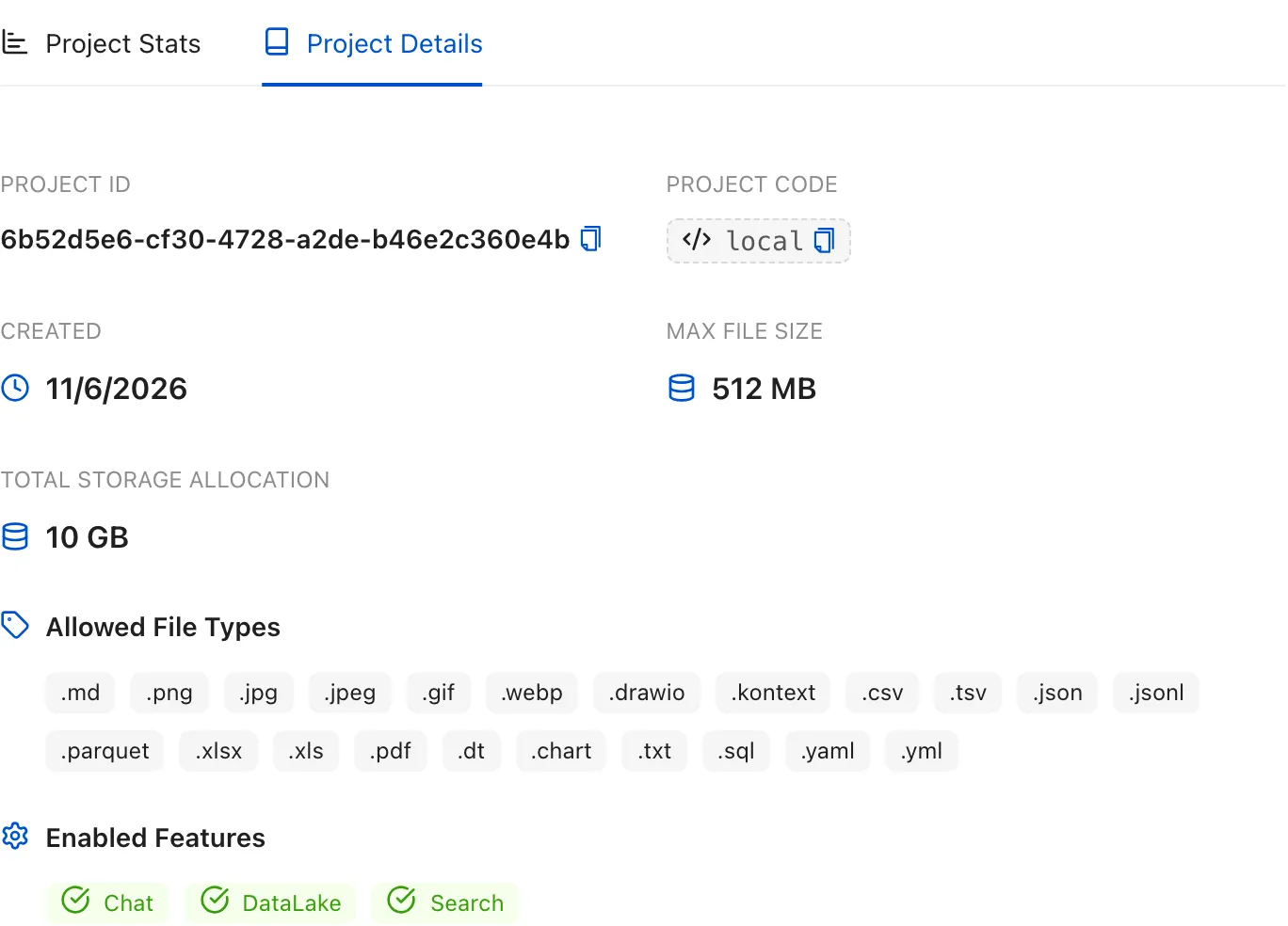
Section titled “Project details”The Project Details tab shows the project ID and code (both copyable), the creation date, the project’s maximum file size and total storage allocation, the allowed file types, and the enabled features. The project code is fixed because it appears in every project URL.
To edit the project name or description, or to review access settings, open Project settings.
Resources and help
Section titled “Resources and help”The right column links to the project’s Files, Notebooks, and the getting-started guide. Upload Files requires contributor access; New Chat is available to everyone with access to the project.
- The Project Stats tab summarizes files, job duration, total tokens, storage usage, and monthly token history.
- The Project Details tab shows the project ID, code, creation date, and file-size limit.